Why does paying with crypto often cost less? We keep adding payment methods, and crypto payments lower our processing costs and risk, so we pass that saving on to you. The checkout page shows the exact amount for each method.
The examples below use a few common exchanges; the steps are much the same on each. We have no partnership with any exchange, so please choose for yourself.
This guide has three parts: getting ready, buying USDT on P2P (C2C), and paying our invoice on the TRC20 network. Button names differ between exchanges; see the table at the end of Part 2. Your app's labels are the reference. If you already have USDT you can withdraw, go to Part 3.
Part 1: Get ready
Step 1: Open an exchange account, verify your identity, turn on 2FA
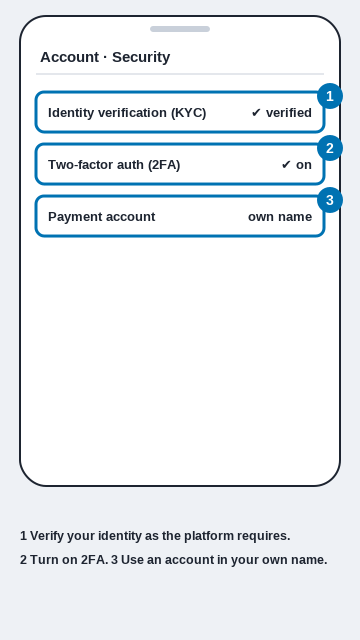
- Complete identity verification (KYC) as the platform requires and turn on two-factor authentication (2FA). The exchanges require identity verification before you can use P2P.
- Have a payment method in your own verified name. The exchanges require a payment account in your own name; never pay from another person's account.
Part 2: Buy USDT on P2P (common steps)
P2P (also called C2C) is the market where an exchange's users buy from and sell to each other. When you place an order, the platform first locks the seller's USDT; after you pay and the seller confirms your payment, the USDT goes to your account.
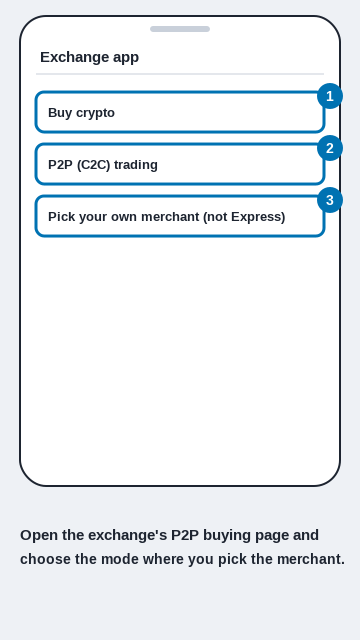
Step 2: Open the P2P buying page
In the exchange app, open the P2P (C2C) buying page (see the table for the path). For your first purchase, use the mode where you pick the merchant yourself, not Express.
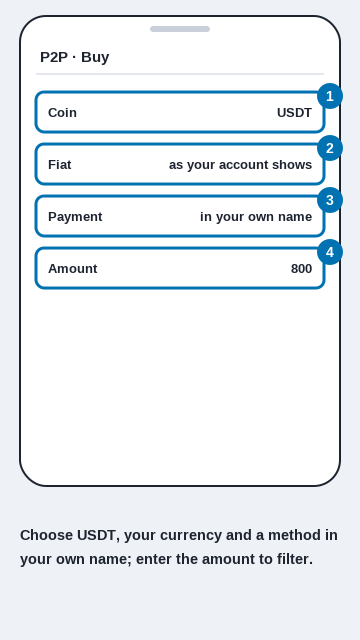
Step 3: Choose USDT, your currency and payment method, enter the amount
- Coin: USDT.
- Fiat: as your account shows.
- Payment method: only one in your own verified name. If there is no suitable option, stop.
- Enter the amount you plan to pay, so the list shows merchants whose limits fit.
Before you buy, estimate how much USDT the invoice needs, plus the TRC20 withdrawal fee (shown on the withdrawal screen). Withdrawals also have a minimum, so buy a little extra.
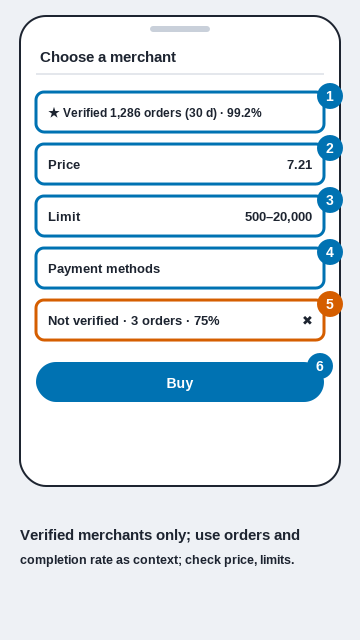
Step 4: Choose a verified merchant only
- Verified merchant badge: choose only merchants the platform marks as verified (the name differs by exchange).
- 30-day orders and completion rate: use them as context; we suggest a completion rate of 98% or higher and many orders. A high rate alone does not make a merchant safe, so check the other items too.
- Price: compare several merchants; be careful when a price is much lower than the others.
- Limits and payment methods: must include your amount and your method.
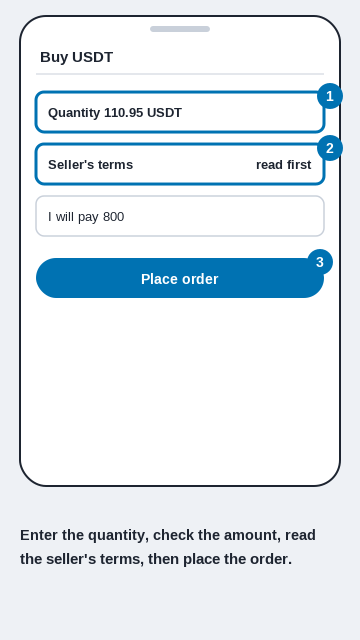
Step 5: Enter the quantity, read the seller's terms, place the order
Enter the USDT quantity and check the amount you will pay. Read the seller's terms before you order (for example rules on payment method or payment time); if you do not agree, choose another merchant. After you order, the order page starts a timer.
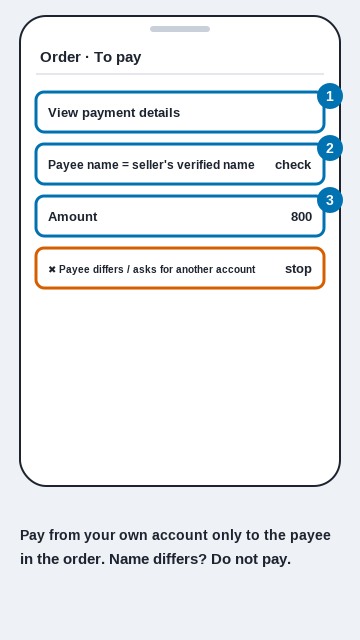
Step 6: Read the payment details in the order and pay from your own account
- Use only the payment details in the order, never an account or QR code sent in a chat or anywhere else.
- Pay from your own verified account. Before you pay, check that the payee's name matches the seller's verified name in the order. If the name differs, you cannot check it, or anyone asks you to pay another account, do not pay.
- Pay exactly the order amount. For a large payment, read the exchange's rules and the seller's terms first; if you pay in parts, go to Step 7 only after all parts add up to the order amount.
- Write no crypto words (USDT, BTC, crypto) in the payment note.
- Both the payment and Step 7 (telling the seller you paid) must happen before the timer ends, so leave enough time. Not enough time and nothing sent yet: cancel and place a new order. Already paid but the order expired: keep the receipt and appeal in the order.
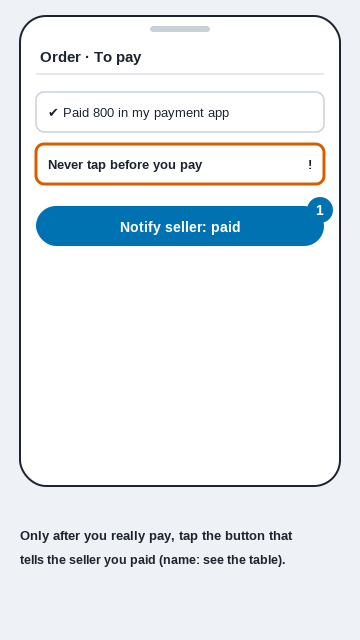
Step 7: After you pay, tap the button that tells the seller you paid
Only after you have really paid, go back to the order and tap the button that tells the seller you paid (names: see the table). Never tap it before you pay.
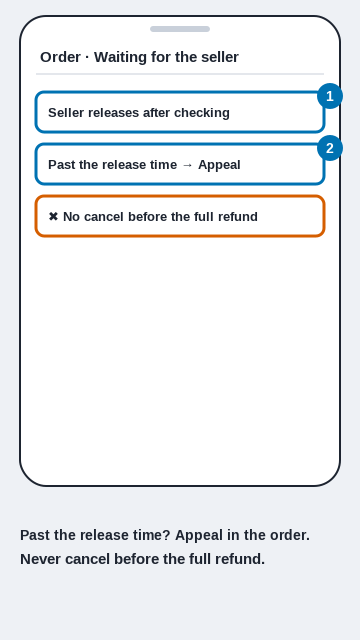
Step 8: Wait for the release; appeal if it is late
- After the seller confirms your payment, the USDT goes to your account.
- If the release time has passed, appeal in the order and give proof of payment as asked.
- Never cancel before the full refund arrives: cancel only when your own payment app shows that the refunds add up to everything you paid. If any amount is still missing, keep the order open and appeal in it.
- If a seller asks you to talk outside the platform, to pay more, or to cancel first, do not do it. Appeal in the order.
- After the release, check that the USDT arrived and how much you can withdraw. If the page says withdrawals are temporarily restricted, wait until the restriction ends before you open our payment page.
Exchange reference table (alphabetical, app)
| Item | Binance | Bybit | OKX |
|---|---|---|---|
| Open P2P | Add Funds → P2P Trading | More → P2P | Buy crypto → P2P trading |
| After choosing a merchant | Buy → quantity → read terms → place order | Buy → amount → Buy | Buy → Buy … with 0 fees → I understand & continue |
| After paying | Transferred, Notify Seller | Payment Completed → finish the popup (e.g. upload proof) → Confirm | I have paid → upload proof → Confirm payment |
| Appeal | Past the release time: Appeal in the order | Seller has not released after 10 minutes: Order Dispute? | Submit a dispute in the order |
| Withdraw path | Assets → Spot → Send → USDT → Withdraw Crypto | Assets → Withdraw → Crypto Withdrawal → USDT → address → chain → amount | Assets → Withdraw → Withdraw crypto → USDT → new or saved destination → network → address → amount → account → Submit |
| Withdrawal fee | The screen shows the network fee and the final amount received before you confirm | Taken from the entered amount by default; Set Up can change it to Withdrawal Amount Entered = Amount Received | New app and web: from your balance when it is enough; old app: from the withdrawal amount |
Names come from each exchange's help pages; your app's labels are the reference. The fee rules differ, so always check the amount received before you confirm.
Part 3: Send the USDT to us
Step 9: Open our USDT payment page and select TRC20 first
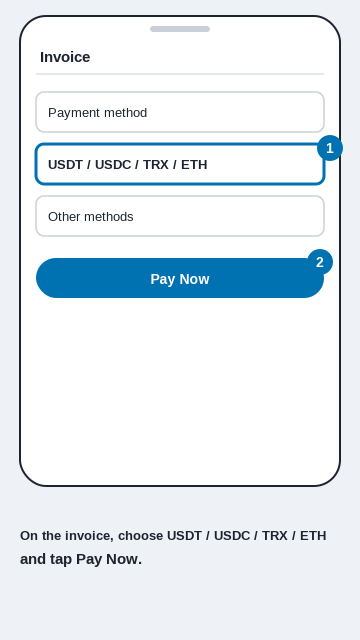
- On our invoice, under Payment Method, choose USDT / USDC / TRX / ETH and click Pay Now.
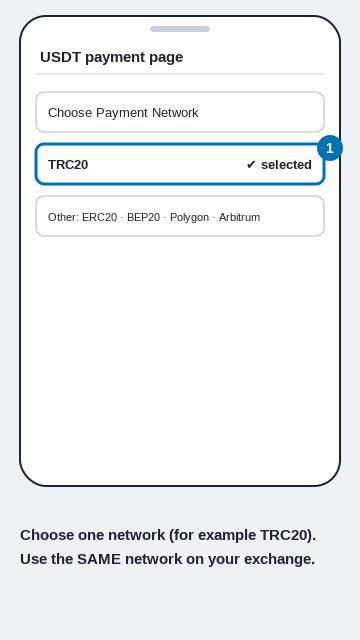
- On the payment page, select TRC20 first and wait until its payment address appears.
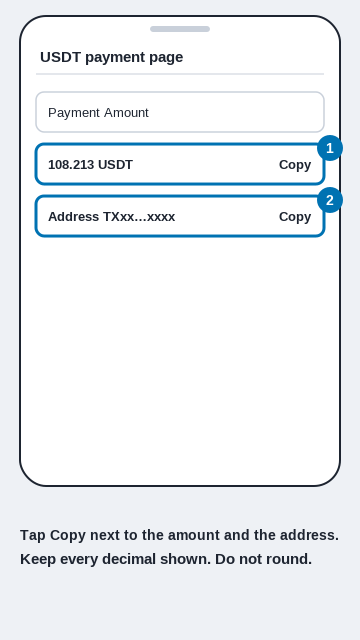
- Check that the amount ends in USDT (not TRX or ETH), then tap Copy next to the amount and next to the address. The amount has up to 3 decimals; keep every decimal shown. Do not round.
Step 10: Withdraw USDT from the exchange
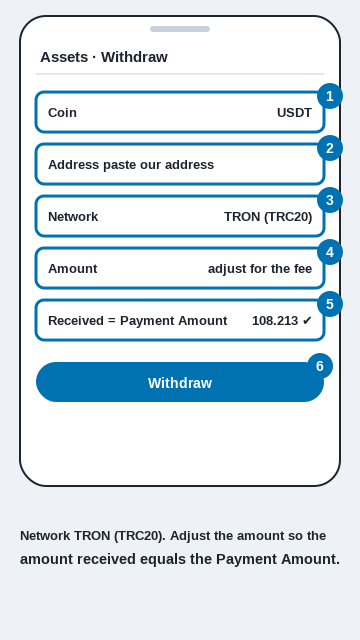
- Open the withdrawal page (path in the table) and choose USDT.
- Address: paste the address from our payment page and check all of it.
- Network: TRON (TRC20). If the networks differ, do not send.
- Amount: read the fee and the amount received. Adjust the withdrawal amount until the amount received equals the Payment Amount exactly.
- Submit and confirm with your passkey or 2FA.
If the withdrawal minimum or decimal limits make an exact amount impossible, do not round up. Use another payment method on the invoice.
Step 11: Submit before the timer ends, then check the invoice
Allow time for the exchange to process the withdrawal and submit it before the timer on our payment page ends. After you submit, you can close the page and check the invoice's payment status later. Never send a second time.
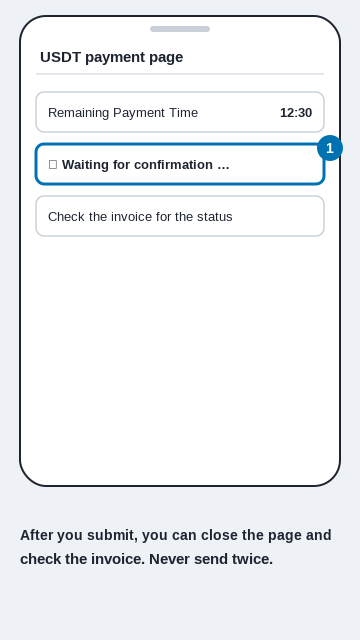
⚠ One invoice, one transfer, the full amount. If the timer ended and you have not submitted any withdrawal: reopen the invoice and check the new network, address and amount. If you already submitted (even if it is still pending): do not send again and do not top up yourself. A TRC20 overpayment or underpayment: use "Paid the wrong amount? Apply here" on the payment page. A wrong network, or a transfer that left the exchange while the invoice still shows unpaid: open a ticket with the invoice number, the network used and the transaction hash (TxID). Funds sent on a wrong network may be lost. The exchange fee is the customer's.
FAQ
- Does buying USDT on P2P cost a fee? The exchange shows any fee; some exchanges charge a fee on P2P trades, and your bank or payment app may charge for the transfer. Withdrawals have a network fee, shown on the withdrawal screen.
- The seller does not release. If the release time has passed, appeal in the order with proof of payment. Never cancel before the full refund arrives.
- Why must I pay the exact amount on the page? The system matches the invoice by the network and the amount of this payment. Use the full amount shown.
- The exchange shows the withdrawal as sent, but the invoice still shows unpaid. Do not send again. Check the amount received, the network and that it was an on-chain transfer, then open a ticket with the transaction hash (TxID).
Japan residents should use exchanges registered with Japan's FSA. Please check yourself whether the platform serves your region. In P2P trading, deal only with verified merchants and pay only inside the order, to lower the risk of frozen accounts and scams.
Exchanges' official help pages
- Binance P2P: buy on the website: https://www.binance.com/en/support/faq/360043832851
- Binance C2C: buy in the app (zh-CN): https://www.binance.com/zh-CN/support/faq/detail/360039384951
- Binance C2C user trading rules: https://www.binance.com/zh-CN/support/faq/detail/360041066751
- Binance: how to withdraw (zh-CN): https://www.binance.com/zh-CN/support/faq/detail/85a1c394ac1d489fb0bfac0ef2fceafd
- Bybit: how to buy crypto with P2P trading (app steps): https://www.bybit.com/my-MM/help-center/article/How-to-Buy-Coins-on-P2P
- Bybit: how to submit an appeal for a P2P order: https://www.bybit.com/en/help-center/article/How-to-Submit-an-Appeal-for-Your-P2P-Order
- Bybit: how to submit an on-chain withdrawal (app steps): https://www.bybit.com/my-MM/help-center/article/How-to-submit-on-chain-withdrawal-request
- Bybit: crypto withdrawal FAQ: https://www.bybit.com/en/help-center/article/FAQ-Crypto-Withdrawal
- OKX: how to buy crypto on P2P trading: https://www.okx.com/help/how-do-i-buy-crypto-on-okx-p2p-trading
- OKX: how to withdraw in the app (zh-CN): https://www.okx.com/zh-hans/help/how-do-i-make-a-withdrawal-app
- OKX: deposit and withdrawal fees (zh-CN): https://www.okx.com/zh-hans/help/do-i-need-to-pay-fees-for-deposit-and-withdrawal